Conditional logic in the Form BUILDER

Forms that adapt to every answer

With Rules, your form shows, hides or fills in fields based on the answers your team gives. Everyone sees only the fields that are relevant to their situation, and you get complete, consistent data.
MoreApp conditional logic "If" "Then"
How it works

A condition and an action, that's a rule

You set up Rules in the Rules tab of the Form Editor, without writing any code.

Choose a condition

Decide what needs to happen in the form: an answer that is a certain value, contains a word, has a value, or is greater or less than a number.

Choose an action

Decide what the form does when the condition is met: make fields visible, hide them, or give a field a value automatically.

Combine conditions

Add multiple conditions with "And" or "Or". When the answer changes, MoreApp reverses the action by removing the fields for you, so the form always stays correct.
Use cases

What you can do with Rules

Ask follow-up questions only when needed

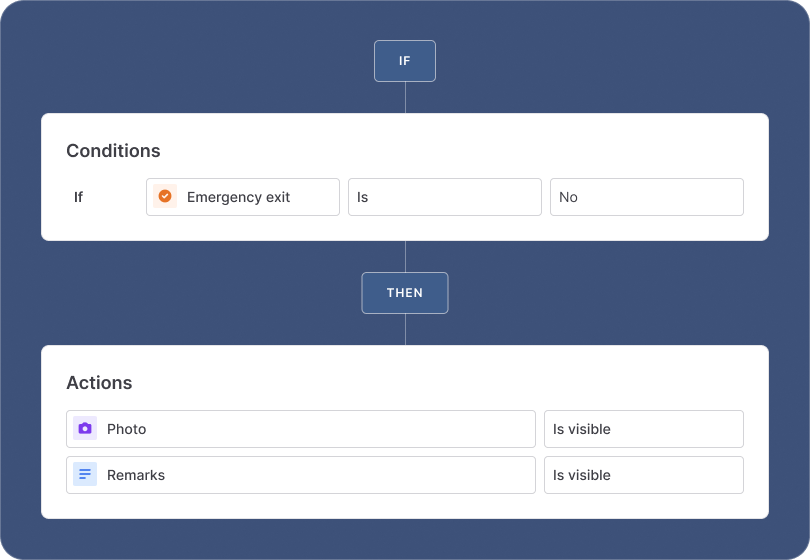
When an inspector answers No, the form asks for a photo and remarks. When everything is fine, those fields stay out of the way.
If Emergency exit is No, show Photo and Remarks.

Flag one of several problems

Combine conditions with "And" or "Or". If the emergency exit is broken or something is missing, the user is asked for a photo and remarks.
If Emergency exit is Broken or Something missing is Yes, show Photo and Remarks.

Ask for the right number of photos

The user chooses how many photos to add. The form shows exactly that number of required Photo fields.
If Number of photos is 2 or 3, show Photo 2.

React to values outside the limit

Use "Greater than" or "Less than" on a Number field. When a measurement is outside the limit, the form asks what action was taken.
If Temperature is greater than 8, show Corrective action.

Bring data from your data source into the form

Use placeholders with "Gets" value to copy details from the selected Search item into other fields, such as a customer's phone number.
If Customer has a value, Phone gets the customer's phone number.

Fill in details automatically

When the user selects a customer or country, other fields get the matching details. No typing, no typos.
If Country is Netherlands, Office location gets the Utrecht address.

Show different fields per customer

Ask customer-specific questions only for the customers they apply to, based on the customer selected in a Search field.
If Company name is MoreApp, show Service level.

Show extra information to specific users

Use the Username variable to show extra fields or instructions to certain users only, such as team leads.
If Username contains teamlead, show Instructions.

Hide what doesn't apply

Keep long checklists short. When a section doesn't apply to the job, its fields are hidden so the user can move on faster.
If Type of job is Maintenance, hide Installation checks.
Spotlight

Send the report to the right people

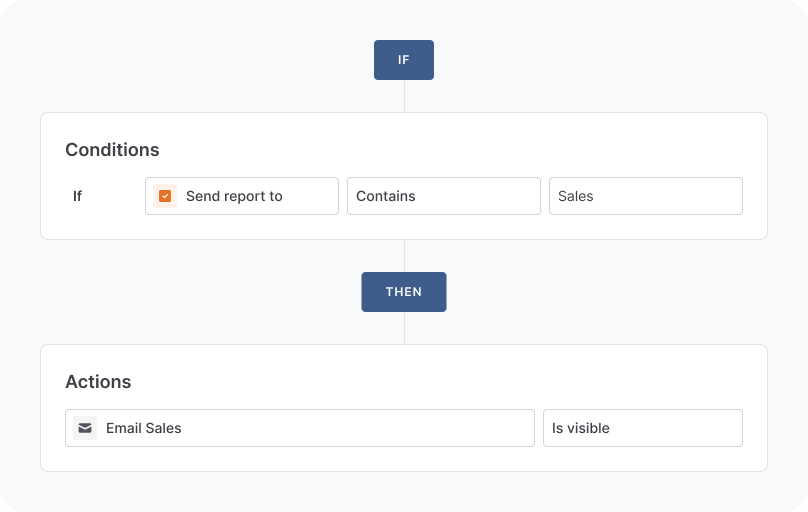
Let the user choose who receives the report. Each option is linked to an Email field with a rule, and the email goes only to the people the user selected.
More information →
MoreApp sending a report to the correct people with rules

Frequently Asked Questions

How do I plan rules for a larger form?

Start from the field you want to show and ask under which conditions it should be visible. Give each field one rule with all of its conditions, combined with "Or".

Can I send emails based on the answers in a form?

Yes. Link options in a Lookup field or Checkbox fields to Email fields with rules, and select those Email fields as dynamic recipients. The email is sent only to the addresses that match the user's choices.

Can rules fill in fields automatically?

Yes. With the Gets value action, a field gets a fixed value or a dynamic value through a placeholder, for example details from an item selected in a Search field.

Can one rule have more than one condition?

Yes. Add multiple conditions and select "And" or "Or". The action then follows as soon as one of the conditions is true.

Do I need technical knowledge to create rules?

No. You create rules in the Rules tab of the Form Editor by choosing a field, a condition and an action from a list. No code is needed.

What are Rules in MoreApp?

Rules are the conditional logic of your form. They show, hide or fill in fields based on the answers the user gives, so every user only sees the fields that are relevant to their situation.

Start building your first form.